Loading...

Best Free Cleaner Apps

Free up storage space on your phone by clearing its memory in just a few clicks!

Best Free Cleaner Apps
BEST CLEANING APPS

You will remain on the same website

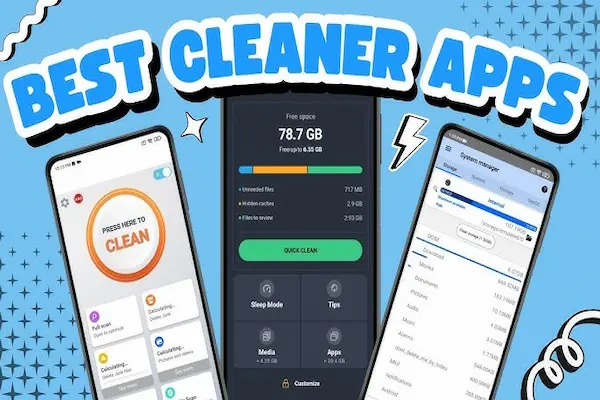
If your phone feels full even after deleting photos and apps, a cleaner app can help you understand what is taking space.

This page explains what free cleaner apps typically do, what they cannot do, and how to use them safely without guessing.

You will see common features like cache cleanup, duplicate detection, and storage analysis explained in plain language.

You will also learn how to compare options and avoid tools that ask for unnecessary permissions or make unrealistic claims.

What “cleaning” means on a modern smartphone

Most phones slow down or feel cluttered because storage fills up, not because they need aggressive “boosting.”

Cleaner apps usually help you identify and remove low-value files like cache, leftovers, and large downloads.

Some also summarize storage by category so you can act quickly without digging through menus.

A cleaner app is most useful when it clarifies what is safe to remove and what is not.

The safest experience is review-first, where you see items before deleting anything.

If an app claims it can dramatically speed up any phone instantly, treat that as a warning sign rather than a guarantee.

How storage gets used up faster than expected

Chat apps, social apps, and browsers can build large caches over time.

Video downloads, offline maps, and streaming app data can silently consume gigabytes.

Photos and screen recordings often grow faster than people notice, especially with higher camera resolution.

Apps can also store duplicated media files across different folders.

Even after uninstalling an app, leftover folders can remain, depending on the system and app behavior.

A storage overview is often the quickest way to spot the biggest opportunities.

Cache, temporary files, and what is usually safe to remove

Cache is meant to speed up loading by storing reusable data.

Over time, cache can grow large and stop being helpful, especially for apps you rarely use.

Clearing cache can free space, but it may also log you out of some apps or slow the first launch afterward.

Temporary files may include partial downloads, installers, thumbnails, and old update packages.

A good cleaner explains each category and lets you choose what to delete.

When in doubt, start with obvious temporary items like old downloads and large, unneeded videos.

Android vs iPhone differences you should know

Android often allows file access across folders, which enables deeper storage scanning.

Android also includes built-in options to clear cache and manage apps, depending on the device brand.

iPhone restricts system-level cleaning, so many apps focus on organizing content rather than deleting hidden system files.

On iPhone, “Other” or “System Data” is not always directly removable by third-party apps.

For iPhone users, reviewing large apps, offloading unused apps, and managing photos often brings the best results.

Your operating system controls what any app can actually change, even if the app’s marketing suggests otherwise.

Permissions and privacy checks before you install

Before installing, read the app’s permission requests and ask what each one is needed for.

Access to photos and files can be legitimate for cleanup, but it should be limited to the function you want.

Avoid apps that ask for permissions unrelated to cleaning, like reading your messages or controlling other apps.

Check whether the developer is identifiable and whether the app store listing includes a clear privacy policy.

If the app offers cloud syncing, confirm what data leaves your device and how it is used.

If anything feels unclear, it is reasonable to skip that app and choose a simpler tool.

Warning signs of risky “booster” and “optimizer” claims

Some apps advertise dramatic speed improvements by closing background processes automatically.

On modern systems, aggressive task killing can cause apps to restart more often and waste battery.

Claims like “boost RAM permanently” or “double your storage instantly” are not realistic for typical consumer phones.

Be careful with tools that push constant alerts, scare messages, or urgent countdowns.

A trustworthy app usually focuses on storage analysis, transparency, and user control.

If the app makes it hard to decline upgrades or ads, that is also a practical red flag.

Built-in alternatives you can try first

Most phones already include storage management settings that highlight large files and unused apps.

Clearing browser data and managing downloads can be done without any extra app.

Cloud photo backup and deletion of local duplicates can free space with lower risk.

Uninstalling unused apps and removing offline content from streaming apps often provides big gains.

Restarting your device can resolve temporary slowdowns without deleting anything.

A cleaner app can still help, but it should complement built-in tools, not replace basic habits.

How to compare free cleaner apps without guessing

Look for clear feature descriptions, especially around what is deleted and how previews work.

Prefer apps that allow manual review instead of one-tap deletion with vague categories.

Check update frequency and whether the developer responds to support questions in a visible way.

Read recent app store reviews for patterns, such as unexpected subscriptions, aggressive ads, or data concerns.

Confirm whether the app supports your Android or iOS version and your device model.

A simpler, well-explained tool is often safer than an all-in-one “super optimizer.”

A simple, low-risk cleaning routine you can repeat

Start by reviewing storage categories to identify the largest items first.

Back up photos and important files before any major deletion session.

Clear obvious junk like old downloads, temporary installers, and duplicate videos you confirm you do not need.

Then review large apps and remove offline content you can re-download later.

If your cleaner app offers a preview, use it and avoid deleting folders you do not recognize.

Finish by checking your free space and monitoring whether it stays stable over the next few days.

When cleaning is not enough and what to do next

If your phone is still full, you may need to move photos to cloud storage or an external drive.

A factory reset can help in severe cases, but it should only be considered after a complete backup and careful planning.

If storage reporting looks wrong, a system update or a restart can sometimes fix indexing issues.

If apps crash or your device overheats, storage may be only one factor, and battery or system health may be involved.

For iPhone “System Data” growth, official Apple guidance is typically the best reference point.

For Android device-specific issues, your manufacturer’s support pages and forums can be more accurate than general advice.

Trust & Transparency

This page is designed to be informational and independent, without implying a special partnership with any specific app or developer.

Cleaner apps vary widely in behavior, permissions, and pricing, so it is important to verify details in official app store listings and support pages.

Before installing or deleting anything, review what the tool will remove, confirm your backups, and rely on official device documentation when you are unsure.

Frequently asked questions

What do free cleaner apps actually clean on a phone?

Most cleaner apps focus on cache, temporary files, downloads folders, and large files you may have forgotten. Some also help you find duplicates, unused apps, and oversized media files. They usually do not increase true “RAM” in a lasting way, and they cannot add physical storage to your device.

Do free cleaner apps work on both Android and iPhone?

Android generally allows more storage access, so cleaner apps often have more features there. On iPhone, many “cleaner” tools are limited and may focus more on photos, contacts, and file organization. Your results depend on your device model, iOS or Android version, and the permissions you grant.

Are cleaner apps safe, and what permissions should I watch for?

A safer cleaner app typically explains what it will delete and lets you review items before removing them. Be cautious with apps that request accessibility services, VPN profiles, or broad file access without a clear reason. Before installing, check the developer name, privacy policy, and what data the app says it collects in the app store listing.

Are they really free, or are there ads and paid upgrades?

Many cleaner apps are free to install but may include ads, usage limits, or optional subscriptions. Some features like deep scanning, automatic cleaning, or duplicate photo removal may be behind a paywall. Always review the pricing screen and subscription terms inside the app store before confirming any purchase.

Where can I get support if something goes wrong after cleaning?

Most reputable apps provide a support email or help center in the app store listing or inside the app settings. If you delete something important, your first stop should be your phone’s recycle bin, cloud backup, or photo recovery area if available. For persistent storage errors, official device support pages from Apple or your Android manufacturer are typically the most reliable reference.

This content was written by:

Luiz Maciel

Luiz Maciel

Communication enthusiast, Luiz specializes in developing content for websites.

Our site serves as an information hub, providing impartial and reliable content to the public.

All content from CDIN Online is protected by property laws. Unauthorized reproduction is strictly prohibited.

LEGAL NOTICE: CDIN Online technology, applications, careers, and general news. We have no affiliation with the brands mentioned and never request personal or banking information. Our mission is to inform our readers.

BEST CLEANING APPS

You will remain on the same website